What is an SRT file & how do you create one?
If you've ever uploaded captions to YouTube, added subtitles to a social video or made your content more accessible, you've probably used an SRT file without even realising it.
An SRT file is one of the most widely supported subtitle file formats, making it easy to add synchronised captions and subtitles to videos across different platforms. Despite its simplicity, getting SRT files right is essential for creating accessible, accurate and professional video content.
In this guide, we'll break down what an SRT file is and how to create, edit and use one. We'll also explore how AI-powered transcription can help you generate accurate caption files faster, whether you're working on one video or managing content at scale.
What is an SRT file?
The term SRT file stands for SubRip file. It's one of the most widely used caption and subtitle file formats. It contains the text that appears on screen, plus timestamps that tell a video player exactly when each caption should appear and disappear.
Unlike a video file, an SRT file doesn't contain any audio or video. It's a separate plain text file, usually with the .srt file extension, that can be uploaded alongside a video to display captions or subtitles. Because it's supported by platforms such as YouTube, Vimeo and many social media and editing tools, it's become the standard format for creating accessible video content. You can read more about video accessibility in our guide to closed captions vs subtitles.
Because SRT files separate captions from the video itself, they're easy to edit, translate and upload across different platforms.
What's included in an SRT file?
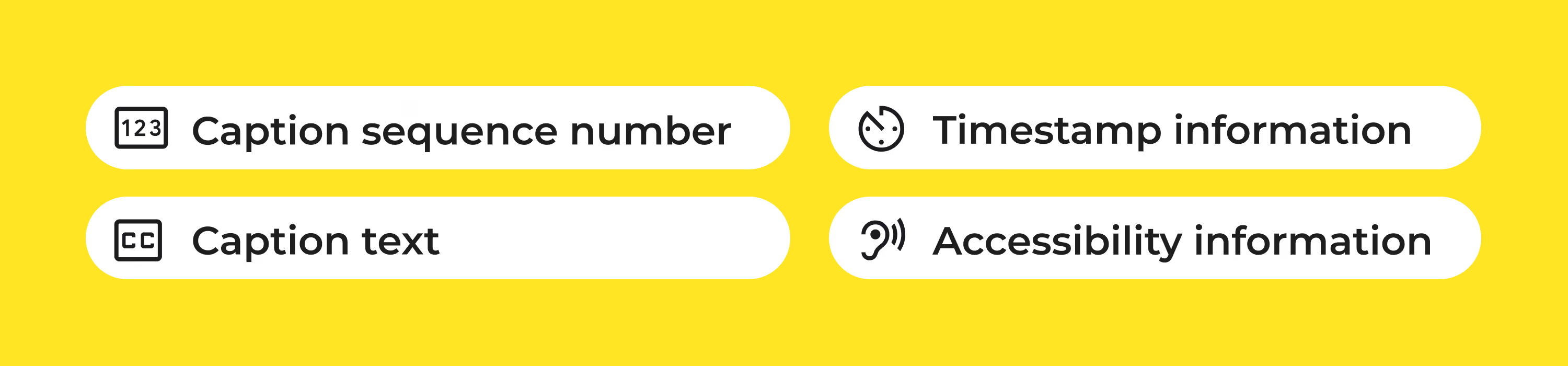
Each caption entry in an SRT file contains four main elements:
- Caption sequence number: A number that shows the order of each caption.
- Timestamp information: The start and end times that tell the video player when to show the text. These are important – if they're even slightly out of sync, captions might appear too early or too late, making videos harder to follow and reducing accessibility. Timestamps are written as hours:minutes:seconds:milliseconds. In the example below, the [Applause] caption appears at 4.5 seconds into the video and disappears at 7.5 seconds.
- Caption text: The dialogue, subtitles or caption information displayed on screen. Each caption is split into one or two short lines to make it easy to read. Most captioning guidelines recommend keeping captions to around 32–42 characters per line and limiting them to two lines where possible. This helps prevent captions from covering too much of the screen and gives viewers enough time to read them at a comfortable pace.
- Accessibility information: For closed captions, the text can also include additional accessibility information, such as speaker identification or relevant sound descriptions.
SRT file example
1
00:00:01,000 --> 00:00:04,000
[Presenter] Welcome to today's video.

2
00:00:04,500 --> 00:00:07,500
[Applause]

3
00:00:08,000 --> 00:00:11,000
We'll explore how SRT files make videos more accessible.
SRT files vs VTT files: What's the difference?
SRT and VTT are two of the most common subtitle file formats. Both help you add captions and subtitles to video, keeping text perfectly timed with what's happening on screen. The difference comes down to how much control you need over the way those captions appear.
An SRT (.srt) file is the simpler of the two formats. It contains caption text, sequence numbers and timestamps, making it easy to create, edit and upload. Because it's supported by most video platforms, editing software and media players, SRT has become one of the most widely used subtitle formats.
A VTT (.vtt) file, also known as WebVTT (Web Video Text Tracks), builds on the same concept but includes extra features designed for web video. In addition to timestamps and caption text, VTT files can support text positioning, styling and metadata, giving creators more control over how captions appear in HTML5 video players.
For many workflows, SRT provides everything you need to create accurate, accessible captions. When you need more control over the look and placement of captions on web video, VTT can offer additional options.
How to create an SRT file
There are two main ways to create an SRT file: manually or with an AI transcription tool. While you can create an SRT file from scratch, using AI is much faster and more practical for longer videos or teams producing content at scale.
A single SRT file might only take a little time to create. Hundreds of them? That’s where the manual work starts to pile up. Reviewing transcripts, adding timestamps and checking captions across multiple platforms can turn a simple task into a lengthy part of your production workflow.
That’s where AI can help. By starting with an accurate transcript, teams can create, review and export caption files faster, without repeating the same work for every video.
If you're looking at the bigger picture of producing more video without increasing your workload, explore our guide on how AI can reshape the cost of video at scale to see where AI can reduce manual work throughout the production process.
Create an SRT file manually
If you're working with a short video, you can create an SRT file in any plain text editor, such as Notepad or TextEdit.
To create an SRT file manually, you'll need to transcribe every spoken word, add timestamps to each caption and make sure everything stays perfectly in sync with the video. It's manageable (albeit time-consuming) for a short clip, but much harder to maintain as your video library grows.
Create an SRT file with AI
Unless you enjoy spending your afternoon pausing, typing and rewinding, AI is a much faster way to create an SRT file.
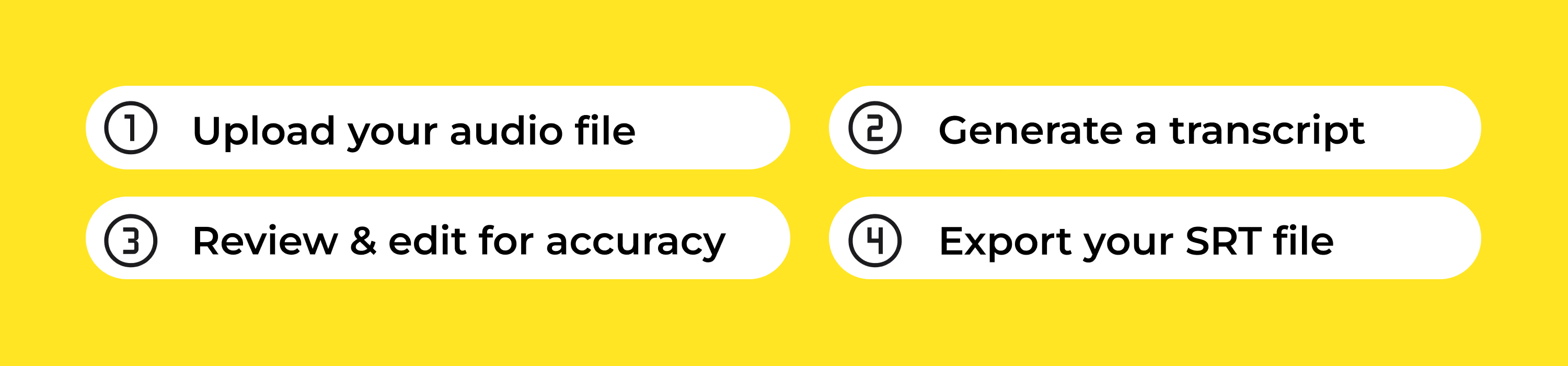
The workflow is simple:
- Upload your audio file
Start by uploading your content to an AI transcription tool like Trint.
- Generate a transcript
AI automatically converts your speech into text and adds timestamps, giving you a first draft of your captions.
- Review and edit for accuracy
Check names and terminology for accuracy. Editing from a draft is much faster than starting from scratch.
- Export your SRT file
Once your captions are ready, export them as an .srt file and upload them to your video platform editing software.
With Trint, Teams can create a transcript, collaborate on edits and generate caption files from one central workspace. Timecodes are automatically added, helping keep captions synced with your video. Exports make it easy to create accessible content across different platforms, helping you move from raw footage to publish-ready captions much faster.
How to open an SRT file
Because an SRT file is a plain text file, you don't need any specialist software to open it. You can view and edit an SRT file in most text editors, including:
- Notepad (Windows)
- TextEdit (macOS)
- Visual Studio Code
- Notepad++
- Sublime Text
When opened in a text editor, you'll see the caption numbers, timestamps and caption text in plain text format.
How to add an SRT file to a video
Once you've created your SRT file, you can upload it alongside your video to display captions or subtitles during playback. Most video hosting platforms, social media sites and video editing software, including YouTube, Vimeo and LinkedIn, support the .srt file format.
The exact steps vary depending on the platform, but the process is usually the same:
- Upload or open your video.
- Navigate to the Captions or Subtitles section.
- Upload your .srt file.
- Select the language of your captions or subtitles
- Preview the video to check that the captions are correctly synchronized.
- Publish or export your video.
If you're publishing the same video across multiple platforms, it's worth reviewing the captions after upload. While SRT files are widely supported, each platform displays and manages captions slightly differently.
If your captions appear too early or too late, you'll need to adjust the timestamps before uploading the file again. Starting with the most accurate transcript possible can help minimize these edits.
How to scale SRT creation
Creating one SRT file is easy. Scaling caption creation across hundreds of videos is another thing entirely.
As your content library grows, so does the complexity. Interviews, webinars, podcasts and training videos all need transcripts, captions and reviews. Add multiple editors into the mix and it's easy to end up with duplicated work, conflicting versions and long approval cycles.
That's why the transcript should become the center of your workflow. With Trint, teams can generate AI-powered transcripts, collaborate on edits in real time and approve a single version before exporting caption files. Everyone works from the same source, making it easier to keep captions accurate and consistent as production scales. The result is a workflow that's built for growing content teams, not just one-off projects.
Create once, publish everywhere
Most videos don't have just one destination. The same content might be published on YouTube, LinkedIn, your website, an LMS or shared internally with employees. Recreating captions every time you upload isn't just repetitive, it also introduces more opportunities for errors and inconsistencies.
Instead, create one accurate transcript and let it power every version of your video.
Trint automatically adds timecodes to transcripts, making it simple to export synchronized SRT files for different platforms. Whether you need closed captions for accessibility or subtitles for international audiences, every caption file starts from the same trusted source, helping you maintain consistency wherever your content is published.
Translate subtitles for global audiences
Your audience doesn't stop at the border. Your subtitles shouldn't either.
Whether you're sharing breaking news, publishing marketing campaigns or delivering training content, subtitles make it possible to reach viewers in their preferred language. The challenge is doing it accurately and at scale.
Starting with a verified transcript gives you a reliable foundation for every translation. Instead of creating separate subtitle files from scratch, you can translate the transcript first, then generate subtitles for each language from the same source. That means less duplicate work, greater consistency and more confidence that every version reflects the original message.
With Trint, teams can translate transcripts into more than 70 languages before exporting subtitle files ready for distribution. One transcript can become subtitles for international interviews, multilingual campaigns or global corporate communications, helping you reach more audiences without multiplying your workload.

SRT files might be simple, but they play a vital role in making video content more accessible, searchable and easier to distribute. Whether you're creating closed captions for accessibility or subtitles for international audiences, a well-formatted SRT file helps ensure your message reaches more people.
As your video production grows, creating and managing SRT files manually becomes harder to maintain. Starting with an accurate transcript gives you a faster, more reliable workflow, making it easier to review content, generate captions and publish across multiple platforms from a single source.
Ready to simplify your captioning workflow? Book a demo to see how Trint helps teams transcribe, edit, translate and export accurate SRT files at scale, so you can spend less time managing captions and more time creating great content.




Tessa Kaday

DON'T take our word for it
Download our eBook, Telling Stories Faster With Trint, and hear how Trint is making content creation faster, easier and, most importantly, painless for newsrooms across the world.
Download
How newsrooms are using AI to bridge the capture-to-publish gap

What Is an SRT File & How Do You Create One?