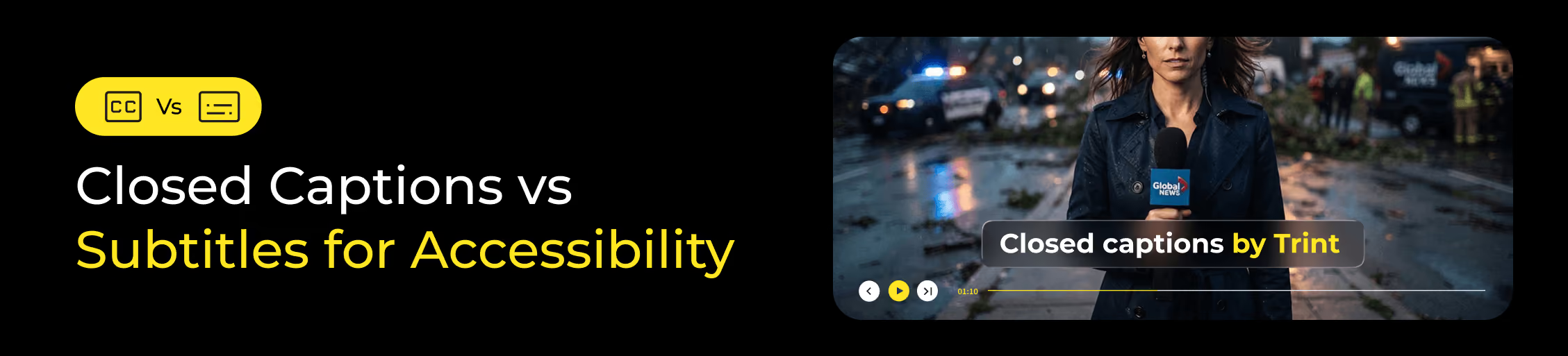
Video has become one of the most powerful ways to share information, tell stories and connect with audiences. But are you cutting off part of your audience before they even press play?
For many people, watching a video isn't as simple as turning up the volume. They may be watching with hearing loss, in a noisy environment or in another language. Without the right accessibility features, valuable content can become harder to access and understand.
Captions and subtitles help remove those barriers. They make video more inclusive, improve the viewing experience and ensure your message reaches everyone it was created for.
In this guide, we'll explore the difference between closed captions and subtitles, why accessibility matters and how teams can create accurate, accessible video content at scale.
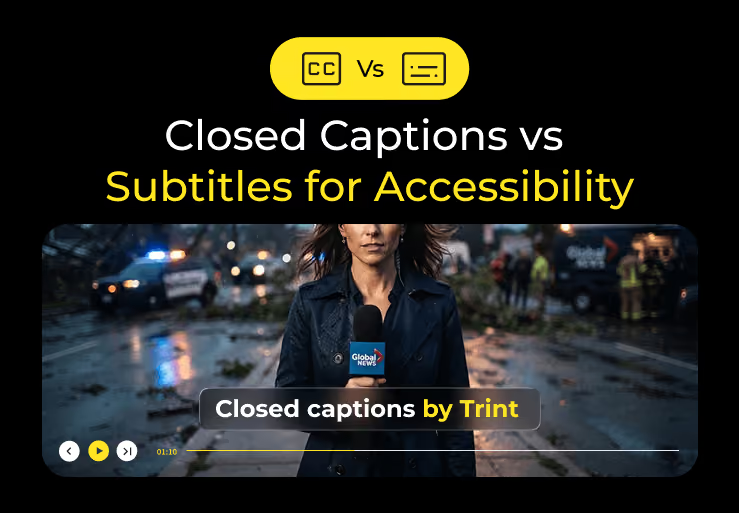
Closed captions vs subtitles: What's the difference?
The terms subtitles and closed captions are often used interchangeably, but they serve different purposes. Understanding the distinction matters for accessibility and audience experience.
Subtitles
Subtitles help to translate the audio in a video. They're designed for viewers who can hear the audio but may not understand the language. Subtitles don't usually include non-speech elements like sound effects or speaker identification.
While subtitles aren't designed specifically for deaf or hard-of-hearing audiences, they play an important role in making content more accessible for global audiences. They remove barriers, allowing people to understand content in their preferred language and making videos easier to engage with across different regions and communities.
Subtitles are particularly useful for:
- International news coverage
- Global marketing campaigns
- Interviews with multilingual audiences
- Educational content aimed at language learners
- Social media content distributed across multiple regions
Closed captions
Closed captions (usually shortened to CC) provide a full text representation of the audio. This includes dialogue, speaker changes and relevant sound cues like music, applause or laughter. They're designed to make video fully accessible for audiences who are deaf or hard of hearing. Closed captions are also useful for viewers watching with the sound muted or in noisy environments. From an accessibility perspective, closed captions are the more complete option.
They are referred to as closed captions because they are embedded as a separate file. They remain 'closed' until the viewer decides to turn them on using their TV or video player's settings.
Open captions are also an option. These are permanently burned into the video and can't be switched off. Hence, they remain 'open'.
Live captions, a type of closed caption, can be generated during live streams, webinars and broadcasts. Unlike prerecorded captions, they need to keep pace with speech in real time, making accuracy and latency especially important.
Closed captions are useful for most video formats, particularly where accessibility and clarity matter most, including:
- Breaking news, interviews and press conferences
- Post-match interviews
- Social video watched on mute
- Educational or training content, such as lecture recordings
- Corporate or internal communications
- Public sector or accessibility-led content
Closed captions are not necessary when the video provides an alternative to text.
Captions aren't just an essential accessibility feature, either. They can greatly help boost the engagement and reach of your content. Because when more people can access your content, more people can engage with it. You can read more about this in our guide to boosting video engagement with captions.
Captions are different from transcripts. A transcript provides a text version of spoken content, while captions are synchronized with the video and include additional audio information. For accessibility, a transcript alone isn't always a replacement for captions because it doesn't provide the same viewing experience.
Closed captions & WCAG
Closed captions aren't just a box-ticking exercise. They're one of the easiest ways to make your content work for more people. They're also essential for meeting Web Content Accessibility Guidelines (WCAG). These are internationally recognized standards for making digital content accessible. Developed by the World Wide Web Consortium (W3C), WCAG provides best practices to help websites, apps and multimedia content work for people with a wide range of disabilities.
More specifically, Success Criterion 1.2.2: Captions (Prerecorded) requires captions for all prerecorded video content that contains audio. The goal is to ensure that people who are deaf or hard of hearing have access to the same information as hearing viewers.
For live video, Success Criterion 1.2.4: Captions (Live) extends this requirement to live synchronized media, such as webinars, live streams and online events.
WCAG is structured into three levels of conformance:
- Level A: The most basic level of accessibility. It covers essential requirements.
- Level AA: The widely accepted industry standard. It builds on Level A and addresses a broader range of accessibility barriers.
- Level AAA: The highest level, but not typically required, as it can be difficult to achieve across all content types.
1.2.2 falls under Level A of the guidelines, making it an essential accessibility requirement for digital content. 1.2.4 falls under Level AA, meaning organisations aiming for stronger accessibility standards should also consider captioning live video content.
Subtitles can make your content more accessible for multilingual audiences by translating spoken dialogue. However, they don't replace closed captions under WCAG, as they don't typically include speaker identification or relevant non-speech audio.
You can read more about WCAG in our guide to making your content accessible.
Should I use captions or subtitles?
While captions and subtitles can both improve the viewing experience, the best option depends on what you want your content to achieve.
How audience expectations have changed
Captions and subtitles aren't just about accessibility anymore. They're how people watch a video.
Think about the last time you scrolled LinkedIn on the train or watched Instagram Reels in a waiting room. Chances are, the sound stayed off.
Captions have become the norm, and it's not just on social media either. 54% of people say they switch on subtitles and captions while watching TV (Stagetext). A large proportion are under the age of 25 and say they use subtitles to help them concentrate.
People don't just expect subtitles and captions when they need them. They expect them because they make content easier to follow. They're part of the viewing experience people have come to expect, and the easier you make your content to consume, the more likely they are to watch, engage and stick around.
Do captions & subtitles help with SEO?
As an added benefit, captions and subtitles can also boost the SEO and AEO of your video. They help search engines and AI systems better understand the content of your videos by providing searchable text alongside the audio.
By improving accessibility, you can increase engagement, helping more people discover and interact with your content. For a deeper look at how transcripts and captions can support video discoverability, read our guide to optimizing long-form video transcripts for SEO.

How to create captions & subtitles for a video
There are several ways to create captions depending on the size of your content library, the level of accuracy you need and the resources available.
- Create captions manually
Manual captioning involves listening to a video, typing out the dialogue and adding timestamps so each line appears at the right moment. Captions then need to be formatted correctly and reviewed alongside the video.
While this approach gives you complete control, it can be time-consuming, especially for longer videos or teams managing content at scale. Even a short video can require significant time to transcribe, synchronize and check.
- Use built-in automatic captioning tools
Built-in AI-powered captioning tools can automatically convert speech into text and generate captions in a fraction of the time. They use speech recognition technology to identify dialogue, create timestamps and produce caption files ready for editing and export.
Automatic captioning is useful for speeding up workflows. It's fast, convenient and better than nothing — but it doesn't always get things right. Accuracy can drop with accents, background noise, fast speech and specialist terminology. And when you're creating captions for news, education, legal or corporate communications, those small errors can have a big impact.
And that's not the only challenge. Each platform works differently. YouTube, LinkedIn, Instagram and TikTok all have their own approach to generating and managing captions. If you're uploading video content across platforms, this means you'll often end up reviewing the same captions over and over again.
This can add a significant amount of time to your workflow, especially if you're managing content at scale. Every additional platform creates another version to check, edit and approve. That time quickly adds up. It's repetitive work that quickly eats into the time you'd rather spend creating, publishing and promoting content.
- Create captions from an accurate transcript
A better workflow starts with a reliable transcript. Instead of starting from scratch every time a video moves to a new platform, teams can create one accurate transcript, review it once and turn it into captions, subtitles and more.
An AI-powered transcription tool turns video and audio into searchable, editable text in minutes. Teams can clean up transcripts, correct names or terminology and collaborate on edits in one place before creating captions. Everyone is working from the same version, reducing repetitive reviews and keeping captions consistent across every channel.
Once your transcript is ready, download it as an SRT file ready to sync to your video. Trint automatically adds timecodes to make publishing easy. For a step-by-step walkthrough, read our guide on how to add subtitles to a video.
The same transcript can also become the starting point for translated subtitles. Trint can quickly translate your text into more than 70 languages, helping teams adapt content for different audiences without rebuilding the process from scratch.
By bringing transcription, editing and caption creation into one workflow, Trint helps teams spend less time fixing captions and more time creating content people can access, understand and engage with. Explore our guide to how AI can reshape the cost of video at scale to see how the right tools can help you produce more content without increasing your workload.

Captions and subtitles do more than add words to a video. They remove friction and create a better viewing experience for everyone. That means more people can access your content, follow your message and stay engaged.
A reliable transcript is the foundation of accurate captions. Book your demo today to find out how Trint can help your team create transcripts and closed captions at scale, so you can get from first word to first draft in minutes.